
Organize Decks on the Dashboard
Use folders to group your decks by subject, level, or unit. Open My Dashboard and find the Decks section.
Put a deck in a folder
- If New Folder appears, select it, enter a clear name, and choose Create. Open a folder first if you want to create a folder inside it.
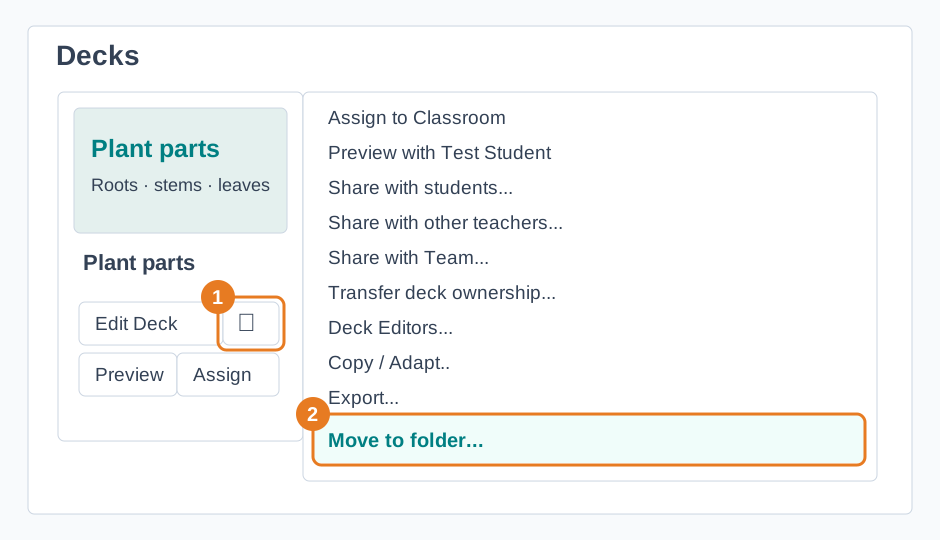
- Open a deck's menu and choose Move to folder.... Select the destination folder.
- Open the folder to find its decks. Select All Decks to return to the full library.
Use a folder's menu to rename it. A folder must be empty before you can delete it; move its decks and folders elsewhere first.
Find a deck
Use Sort to choose Newest or Name (A–Z). On the Pro Plan, search by title or description, or open Filters to choose Subject, Level, or Language. Search looks across your library. Select Clear when you want to return to browsing folders.