
Share a Classroom Link or QR Code
Students join through your classroom address. Share that address when you are ready for them to open an assigned deck.
Show the link or QR code
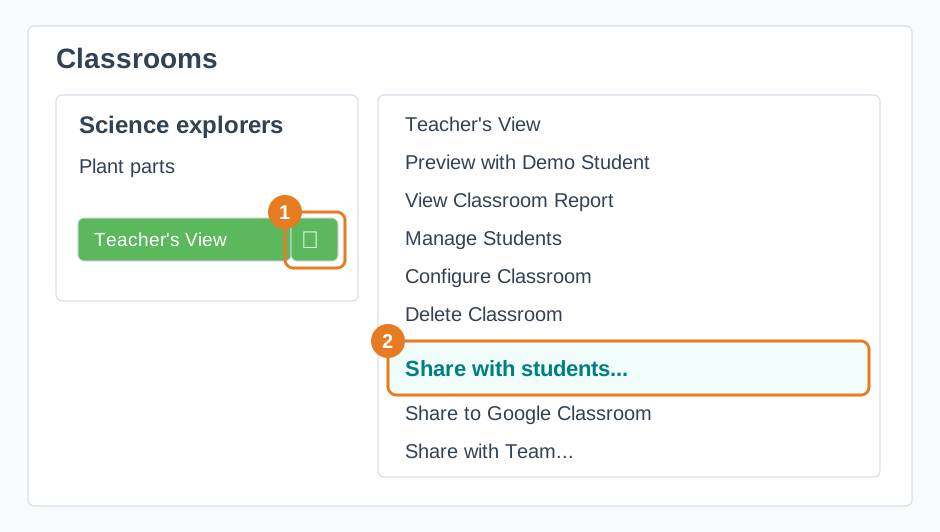
- In My Dashboard, find your classroom under Classrooms. Make sure the deck you want students to use is assigned there.
- Select the QR icon beside the classroom address, or open More classroom actions and choose Share with students....
- Select Copy join link to send the address to students, or display the QR code for them to scan. Share to Google Classroom or Share to Microsoft Teams may also appear, depending on how you signed in.
- Open Teacher's View and check that students have joined before starting the lesson.
Use the classroom address for student work and saved responses. A deck preview or teacher-sharing link serves a different purpose. If students have trouble joining, check the options in Configure Classroom. See Choose Who Can Join Your Classroom.