Create a Lesson with Lesson Creation Wizard
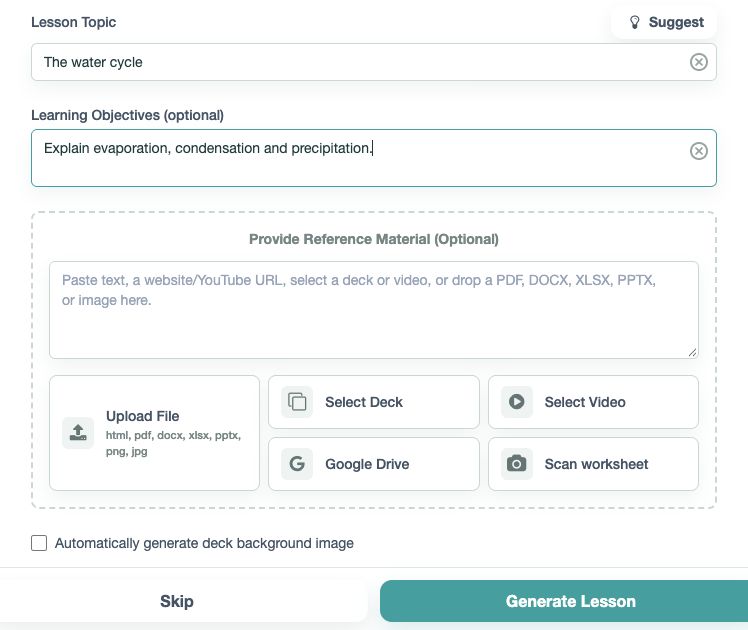
On your Dashboard, choose Full Lesson to open Lesson Creation Wizard. If you are using the classic deck list, choose Create new Deck (Lesson). Enter a Lesson Topic, Learning Objectives, or Provide Reference Material (Optional). You can paste lesson notes, add a file, or start with a topic alone. Include the grade or level and say what students should learn.
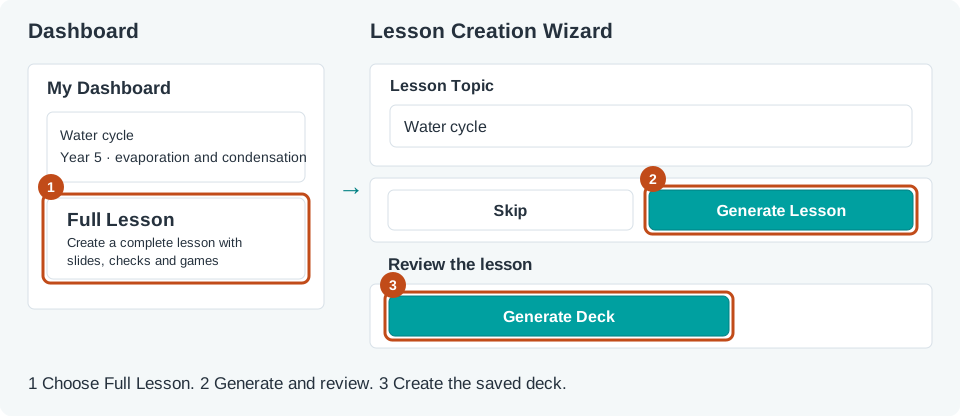
Choose Generate Lesson. Read the proposed slides, questions, and Study Sets. Check that the facts and answers are right for your class. To change a section, use its refine control, describe the change, and review the Generated Preview before applying it.
When you are happy with the lesson, choose Generate Deck and wait for the deck to be created. Open the saved deck in Deck Builder to make final edits and preview the student experience before assigning it to a classroom. The Wizard's Export options require you to generate the deck first.