
How Do I Share a Deck with Another Teacher?
To let a colleague view your deck, open its menu on My Dashboard, choose Share with other teachers..., and send them the deck link. A link lets them open the deck; it does not place it in their dashboard.
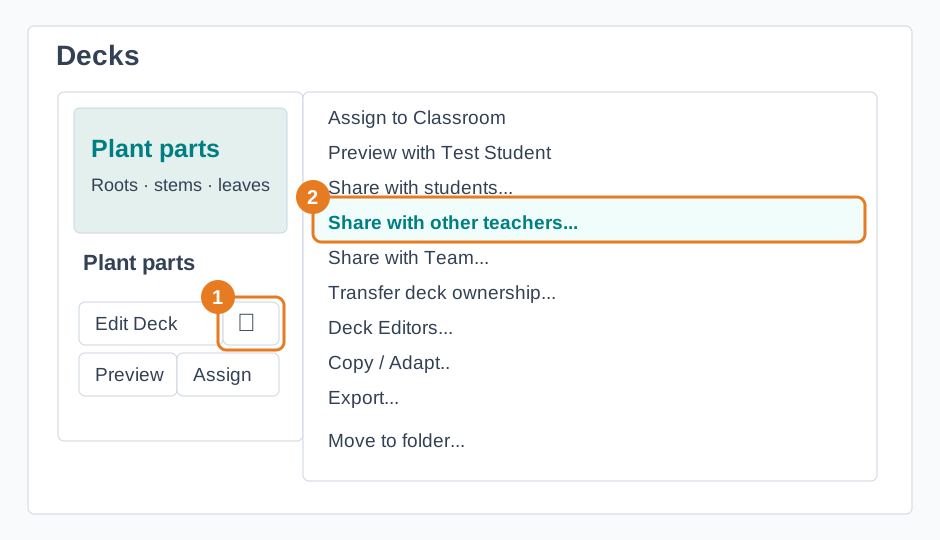
If they want their own editable version, they should sign in to their own Deck.Toys account, open the shared deck, and choose Copy / Adapt... They can make a direct copy or adapt it first. Their new deck appears in their dashboard and counts toward their private-deck allowance. If they cannot find it, check which account was signed in when they copied it.
For colleagues in a Deck.Toys team, choose Share with Team... from your deck menu. Team members can find the shared deck through their team access without making a personal copy. Use Copy / Adapt.. when they want a separate version to change.
See How do I make a copy of an existing deck? for more on copying, and teacher Teams for shared team resources.