
Import Study Sets and Question Sets
If your terms or questions are already in a document or spreadsheet, you can paste them into a new Study Set or Question Set instead of entering each item separately.
Import your content
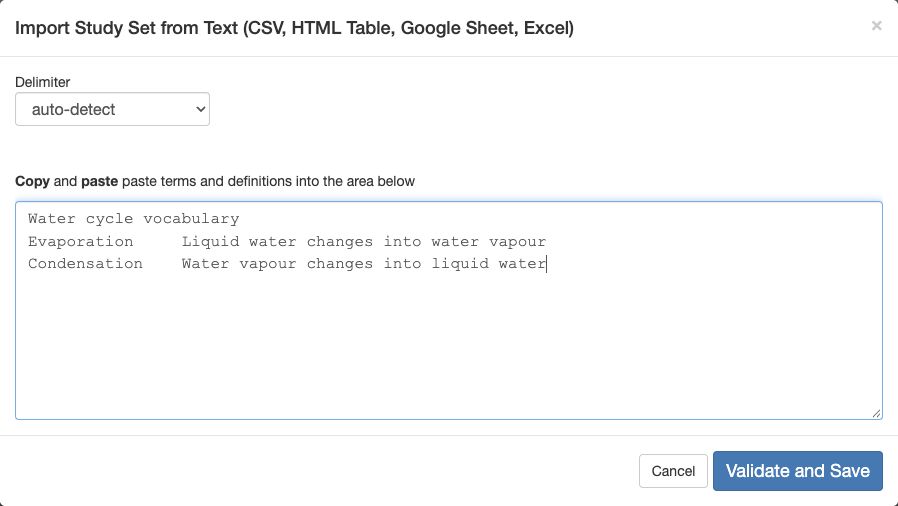
- Open your deck in Deck Builder. Choose Study Set or Question Set, then select Import from text, Excel, Sheet.
- Copy the rows from your document or spreadsheet and paste them into the import box. For a Study Set, put the term and definition in separate columns. For a Question Set, use one row per question: question, correct answer, then up to three wrong answers.
- Check Delimiter. Leave it on auto-detect, or choose tab or comma to match the pasted text.
- Select Validate and Save. Read the imported items and correct any misplaced text, missing answers, or unclear choices before adding the set to an activity.
Preview the activity to make sure students see the questions and answers as you intended.