
预览课件
在分配课程前使用 Preview Deck,检查学习路径和学生体验。教师视图与学生视图显示不同的控件。
默认预览会打开含一名演示学生的教师视图。演示学生出现在预览班级中,因此你可以在不使用真实学生数据的情况下试用课程。
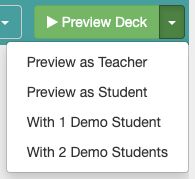
在 Preview Deck 菜单中选择 Preview as Teacher、Preview as Student、With 1 Demo Student 或 With 2 Demo Students。两名演示学生选项可用于测试学生间的互动。
阅读https://help.deck.toys/article/55-teacher-view-and-student-view,了解两者的区别。
在教师视图中打开 Apps & Power-Ups,查看可用的班级工具和游戏。使用学生预览检查学生会看到什么,包括可用时的学生挑战。