
Share Decks and Classrooms with a Team
Share teaching materials with a Team when colleagues need to find the same deck or classroom. You need a Team membership that allows you to add resources, and you must own the item you share.
Share a deck
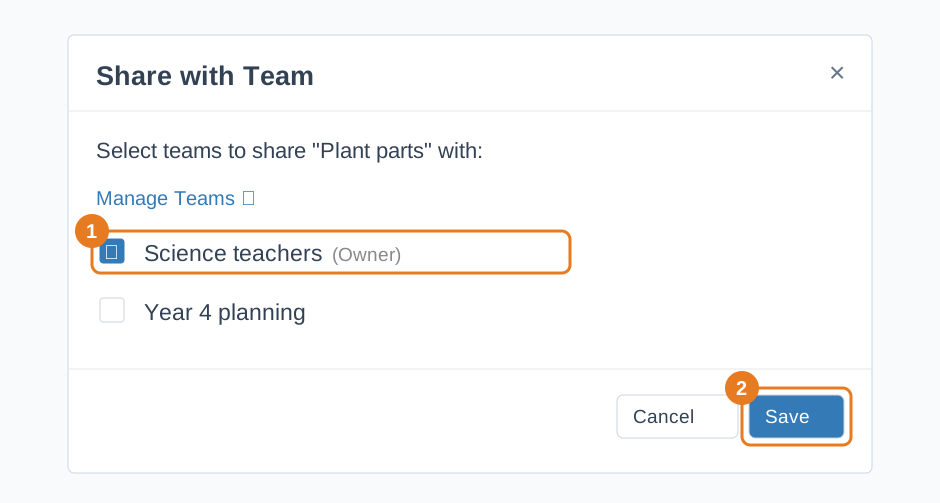
- In My Dashboard, open the menu for a deck you own.
- Choose Share with Team....
- Select the Team or Teams that should have access, then choose Save.
Share a classroom
- Under Classrooms, open More classroom actions for a classroom you own.
- Choose Share with Team..., select the Teams, then choose Save.
Colleagues can find shared items through View Team Library. Their available actions depend on their Team role. A Test Classroom cannot be shared with Teams. To change access later, reopen the sharing option and update the selected Teams.
This shares with teachers in your Team. To invite students, use Share a Classroom Link or QR Code. For Team setup and invitations, see Teams for Teachers.