
How to use Classroom Messages
Classroom Messages lets you send a quick note to one student or your whole class while a live classroom is running.
Use it for quick reminders, quiet support, and small checks without pausing the lesson.
Send a message from Teacher View
- Open your live classroom in Teacher View.
- Open Apps & Power-Ups.
- Choose Student Messages.
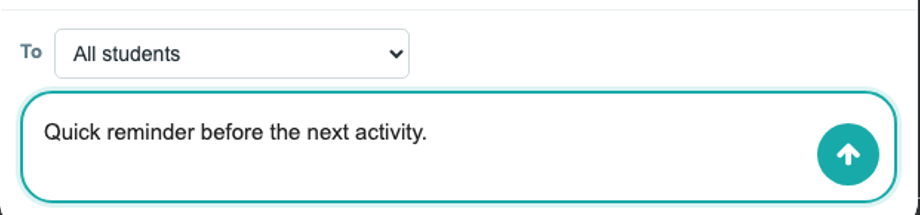
- Choose All students or a specific student.
- Type your message and send it.
Let students message you
Student replies are optional. Turn this on only for classes where you want students to message you from their student menu.
- Open Classroom Settings.
- Turn on Allow students to message teacher.
- Students can then send a message to you from the student menu.

When this is useful
- Send a quick reminder before the next activity.
- Give one student a quiet nudge without stopping everyone.
- Let students ask for help privately when you have enabled replies.