
Start a Play Now Lesson
If Play Now appears on your Dashboard, you can use it to prepare a short activity and start teaching with a class.
Prepare your activity
- In My Dashboard, enter a topic or paste your notes. You can also add teaching material.
- Select Play Now, then wait for your activity to be prepared.
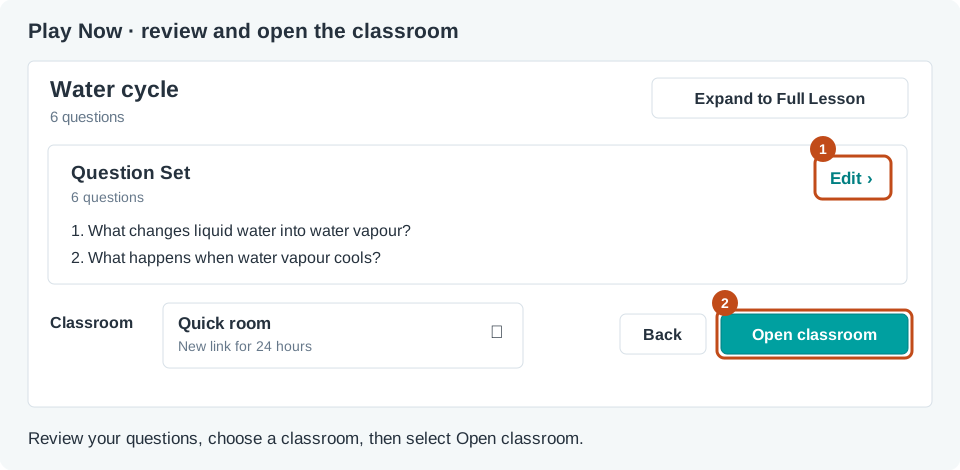
- Select Edit next to Question Set to review and change the questions and answers. Use Pick a game to choose a different game before opening the classroom.
Choose where students join
Under Classroom, select Quick room for a new student link, or Existing classroom to use a class you already teach. An existing classroom keeps its usual student link and assigned decks. Check your choice, then select Open classroom. A Quick room provides a new link for 24 hours.
The teacher view opens with the join information. Show the link or QR code so students can join on their own devices. At the Checkpoint, students tap and wait. Select Show requests, then Approve all requests to unlock the game. Choose Full Lesson when you need a longer sequence of slides and activities.