
Choose Photo, Upload, or Draw Responses
Choose the Slide App that matches the work you want to collect. Photo lets students take a picture with their device. Upload lets them select an existing image or screenshot. Draw gives them a canvas for drawing on the slide. See the individual guides for Photo, Upload, and Draw.
Configure the response
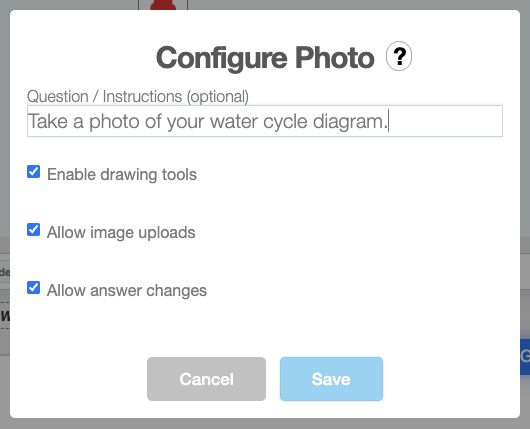
- Open the Slide Activity, add your chosen app, and open its settings. Enter a short task under Question / Instructions (optional) so students know what to submit.
- For Photo or Upload, set Enable drawing tools if students should annotate the image. Photo also offers Allow image uploads if students may choose an existing image instead of taking a new picture.
- Set Allow answer changes according to whether students may revise a submission. Draw has this setting too.
Preview the slide as a student and try the submission path you expect the class to use. Check that the prompt, camera or upload choice, and drawing tools are clear before assigning the deck.